The best video compressor for Windows depends on the job: six tools, honestly compared
Six no-watermark video compressors for Windows: HandBrake, FFmpeg, Shutter Encoder, VLC, Clipchamp and Becheloon. Who each one is best for, and where it stops.
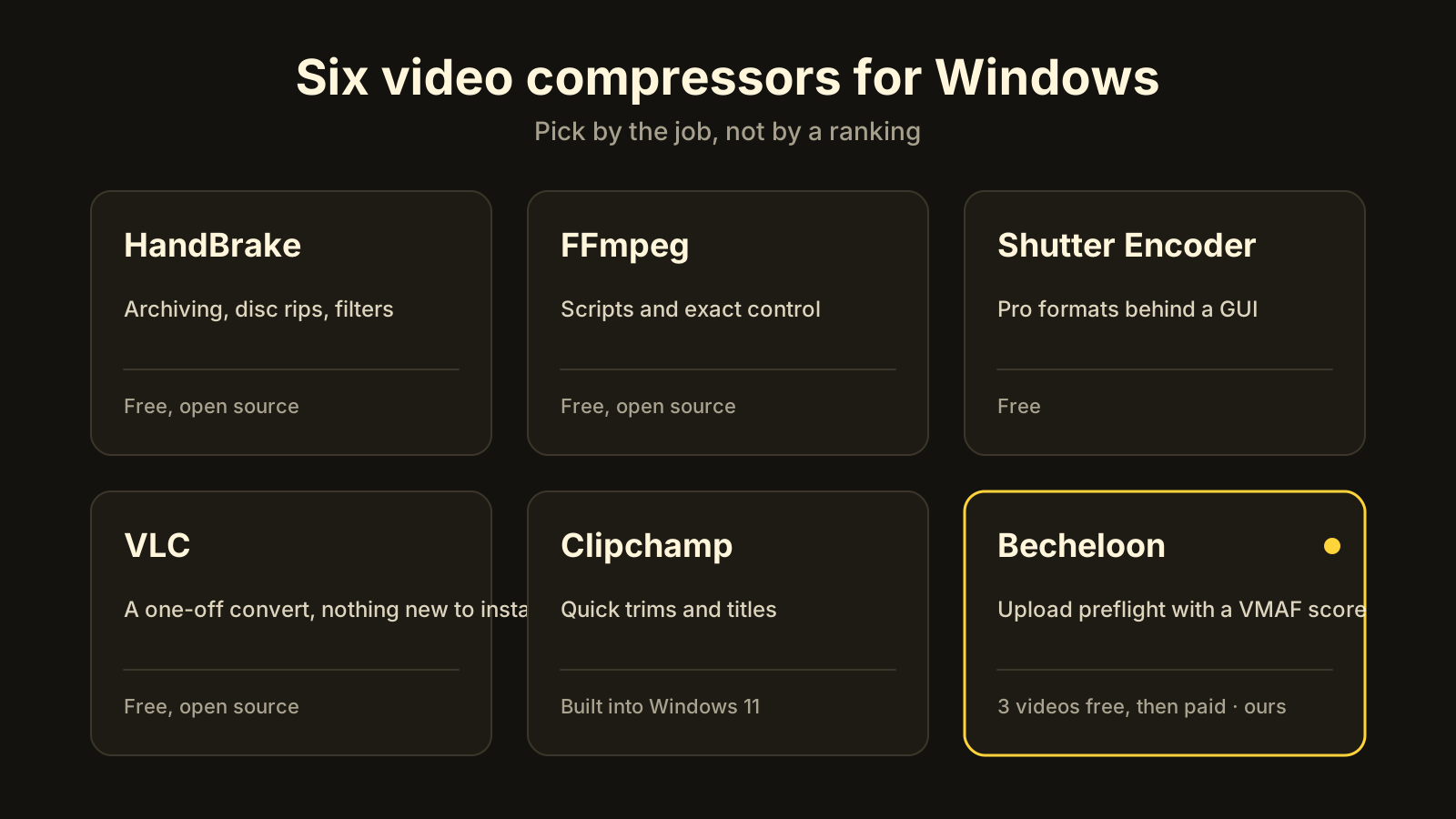
There is no single best video compressor for Windows; there is a best one for your job. For a library of old footage it’s HandBrake. For a script that runs every night it’s FFmpeg. For a one-off file it’s probably VLC, which you already have. For a file that is about to go to Reels, YouTube or TikTok and you want proof it still looks right, it’s Becheloon, which measures its output with VMAF and refuses anything under 93. All six tools below export without a watermark, and five of them are free.
What should a video compressor for Windows actually do?
“Compress” hides several different jobs. Before comparing tools, decide which of these you need:
- Shrink the file by re-encoding with H.264 or HEVC at a sensible bitrate. Every tool here does this.
- Keep the picture believable. That means constant-quality encoding or a measured bitrate, correct colour handling (HDR and Log don’t survive a naive re-encode), and ideally a quality score afterwards.
- Fit a destination. Reels wants 1080 × 1920 at 30 fps; YouTube recommends about 8 Mb/s for 1080p30 and 12 for 1080p60 and plays audio at around −14 LUFS. Google’s own table has the full list.
- Not cost you anything you didn’t expect: a watermark, a forced account, an upload of your 4 GB file to someone’s server.
| Tool | Price | Watermark | GPU encoding | HDR handling | Loudness | Quality score | Batch | Offline |
|---|---|---|---|---|---|---|---|---|
| HandBrake | Free, open source | None | NVENC, Quick Sync, AMD | Manual (10-bit HEVC settings) | Gain only | No | Queue | Yes |
| FFmpeg | Free, open source | None | Yes, by flag | Manual (filters) | Yes, loudnorm, by hand |
Yes, libvmaf, by hand |
Scripts | Yes |
| Shutter Encoder | Free | None | Yes | Manual | Normalisation option | Not automatic | Yes | Yes |
| VLC | Free, open source | None | No, software | No | No | No | Limited | Yes |
| Clipchamp | Free tier; paid tier exists | None at 1080p | Not documented | No, SDR output | No | No | No | Needs account and internet |
| Becheloon | 3 videos free, then $6.99/month | None | Auto-chosen and self-tested | Automatic per destination | −14 LUFS, two-pass | VMAF, refuses under 93 | Queue | Yes |
One thing the table can’t show: the free tools are free because they ask you to know the answers. The columns marked “manual” and “by hand” are real work, and whether that work is a feature or a tax depends on who you are.
Which video compressor is best for which job?
HandBrake: best for archiving, disc rips and filter work
HandBrake is a general-purpose, open-source transcoder for Windows, macOS and Linux. It has x264 and x265, hardware encoders, a long preset list, a constant-quality slider, and filters for deinterlacing, denoising, cropping and scaling. It reads DVD and Blu-ray folders and keeps chapters and subtitle tracks.
Its limits are the flip side of its generality. It doesn’t know where the file is going, so it won’t flag a 4K60 HDR Reel. It doesn’t normalise loudness, and it doesn’t measure the result. We wrote a longer piece on exactly that: HandBrake alternative for Windows. Price: free, GPL.
FFmpeg: best for scripts and exact control
FFmpeg is the command-line engine under most of the other tools on this list, including Becheloon. It can do everything: every codec, every hardware encoder, two-pass loudness normalisation with loudnorm, LUTs with lut3d, tone-mapping, and a VMAF score with libvmaf if your build includes it.
The limit is that can is doing a lot of work in that sentence. A correct Reels encode of an iPhone HDR clip is a long command with filter chains, and the loudness and VMAF steps are separate passes you run yourself. If you enjoy that, nothing beats it. If you don’t, you’ll end up with one of the GUIs below. Price: free, LGPL/GPL.
Shutter Encoder: best for professional delivery formats behind a GUI
Shutter Encoder is a free Windows, macOS and Linux front-end built on FFmpeg and aimed at editors. It handles ProRes, DNxHD/HR and other intermediate formats as well as H.264 and HEVC, has hardware acceleration, batch processing and a loudness-normalisation option.
It’s a professional’s toolbox, with a professional’s interface: lots of options, little guidance about which to pick for a given platform. It doesn’t automatically score each encode against the source, and it won’t decide the HDR path for you. Price: free.
VLC: best for a one-off conversion with nothing new to install
VLC is a media player, but under Media → Convert / Save it has a basic transcoder with H.264 and H.265 profiles. If you need to turn one file into a smaller MP4 once and don’t want to install anything, it will do it.
It’s a blunt instrument. Software encoding only, few settings, no colour handling, no quality check. If you find yourself opening the convert dialog twice a week, move to one of the others. Price: free, GPL.
Clipchamp: best for quick trims and titles on Windows 11
Clipchamp is Microsoft’s video editor and ships with Windows 11. It’s the easiest place to trim a clip, add a title and export an MP4, and its free tier exports 1080p without a watermark. A paid tier exists; we won’t quote its price because it changes.
It’s an editor first and a compressor second. You choose a resolution, not a bitrate; HDR comes out as SDR; there’s no loudness target, no quality score and no batch. It also needs a Microsoft account and an internet connection to open, which matters if offline is a requirement. Price: free tier.
Becheloon: best for upload preflight with a measured result
Becheloon is ours, and it’s deliberately the narrowest tool here. It does one thing: you drop a file, it reports in a few seconds what YouTube, Reels or TikTok will break (HDR, Log, frame rate, bitrate, loudness), it builds one upload-ready copy on your own PC, and it measures that copy with VMAF. Under 93, it isn’t delivered; the app retries at 1.4× and 2× bitrate first and tells you if it still can’t get there.
It picks the encoder for you (NVENC, Quick Sync, AMD AMF, then software Kvazaar), tests each one on first run, keeps HDR for YouTube and iPhone→Reels, tone-maps for TikTok, applies the official Apple, Samsung, DJI and GoPro LUTs or your own .cube, and normalises audio to −14 LUFS. If the file is already right, it doesn’t re-encode it at all.
Limits: Windows 10/11 x64 only, no editing, no subtitles, no Mac. And it costs money after the first three videos: $6.99 a month, $17.99 for three months or $59 a year, paid once, no auto-renewal. The report stays free forever.
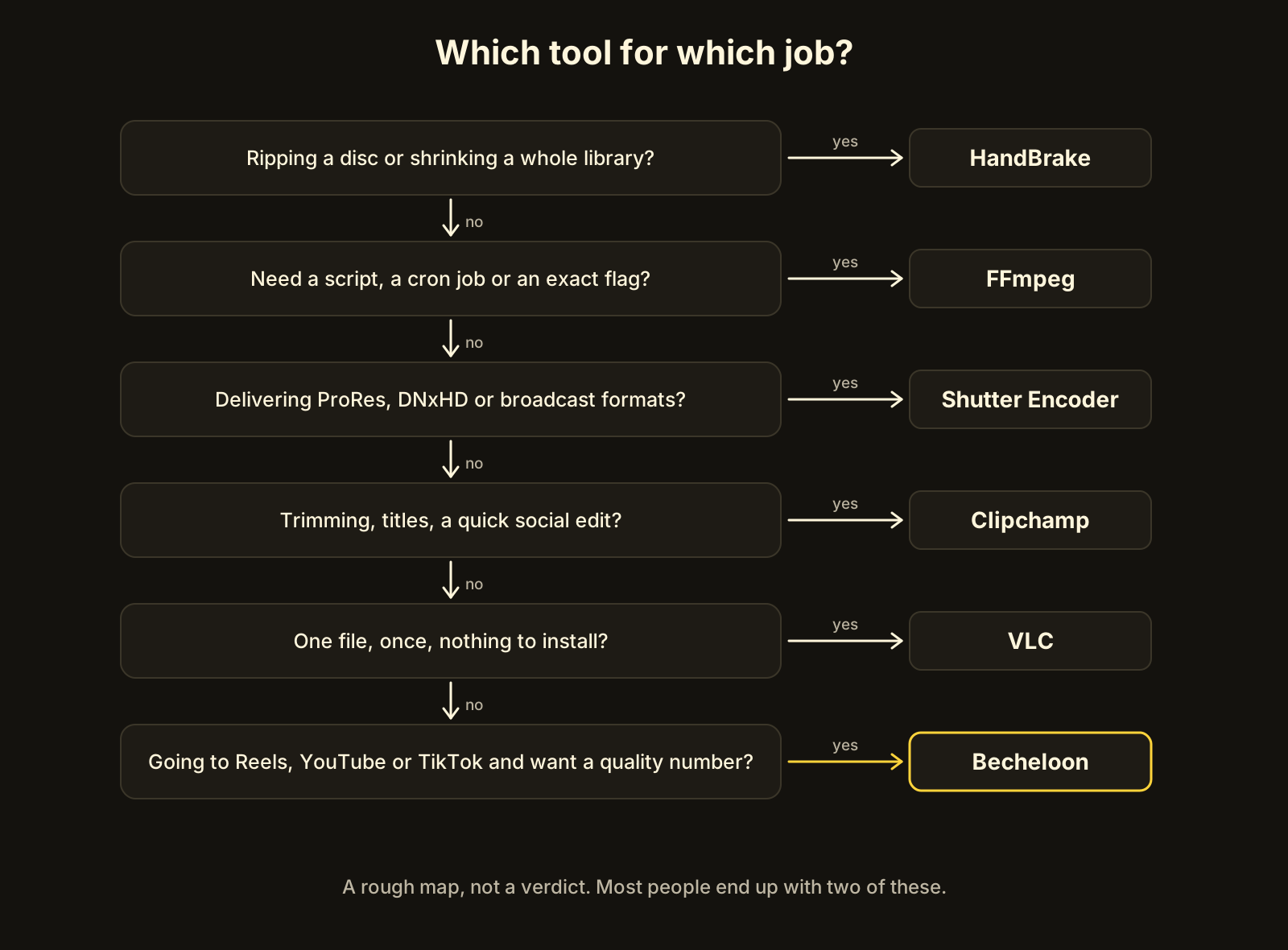 A rough map. Most people end up with two of these installed.
Why is Becheloon on a list we wrote?
Because leaving it off would be stranger than including it, and because the comparison holds up when the criteria are written down first. Every “manual” in the table is a real gap for someone uploading phone footage every week, and no other GUI here scores every output automatically. That’s the whole reason we built it. If your job is in one of the other five rows, use that tool; we linked to each one for a reason.
How do you compress a video on Windows without a watermark?
Whichever tool you pick, the steps are the same; the tools differ in how many of them they do for you. How to compress a video without losing quality covers each step in depth.
- Look at the source. Codec, resolution, frame rate, bitrate, and whether it’s HDR or Log. A ProRes or APV file has room to get 90% smaller; a clip saved from WhatsApp has almost none.
- Name the destination. Reels, YouTube, TikTok, a chat app, or your own archive. Each has a different right answer.
- Choose the tool by the job, not by the ranking. Use the flowchart above.
- Encode for constant quality, not a fixed bitrate, or at the destination’s recommended bitrate. In x264 terms, CRF 18–23 is the usual range.
- Handle colour and loudness. HDR to an SDR destination needs a tone-map; Log needs its LUT; audio for YouTube should sit near −14 LUFS.
- Measure, then compare sizes. A VMAF in the low 90s or above is fine for a file the platform will re-encode anyway. If the new file is barely smaller, send the original.
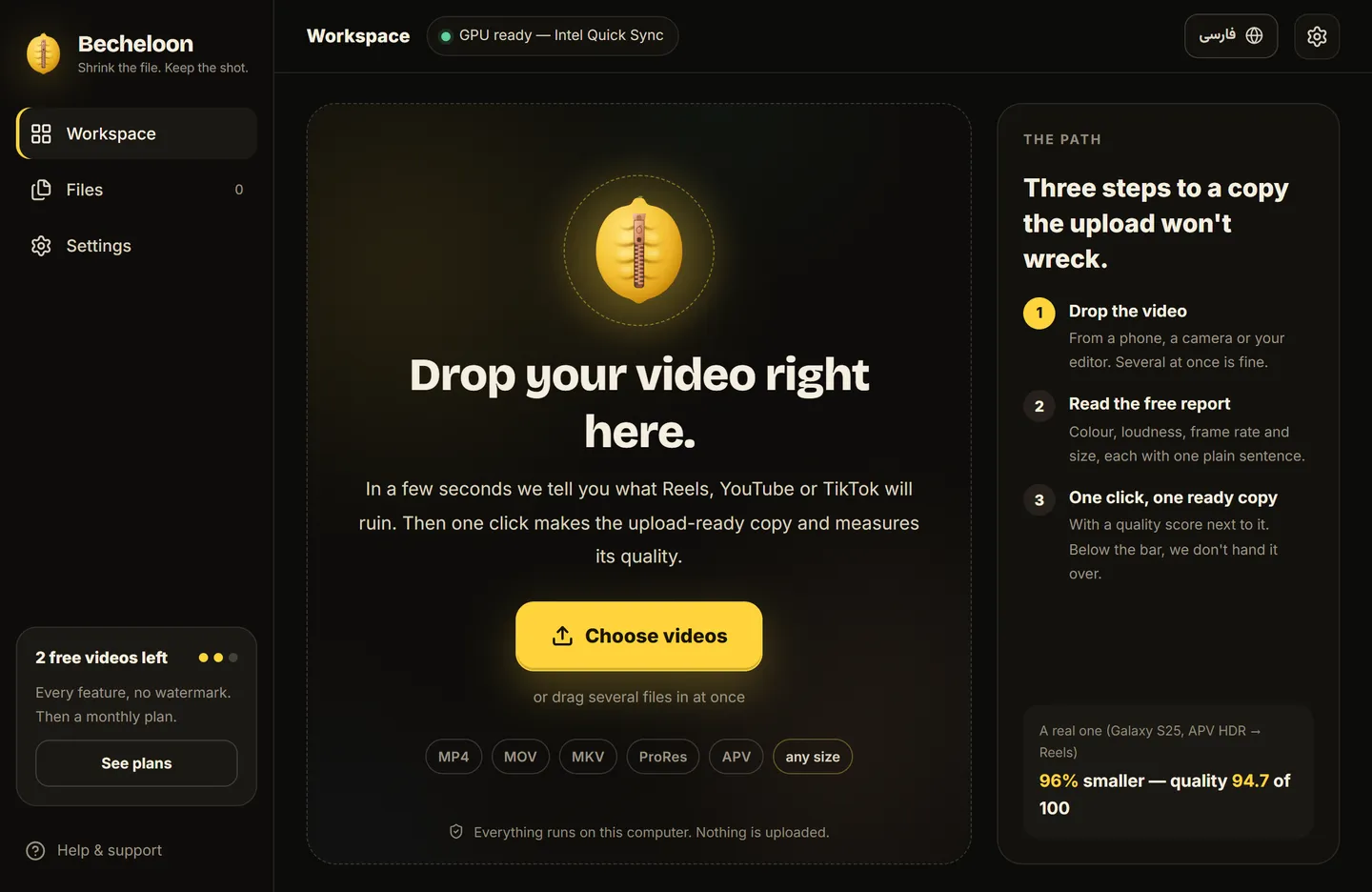 Becheloon does steps 1, 2, 4, 5 and 6 itself. Step 3 is this article.
Frequently asked questions
Which video compressor for Windows has no watermark?
All six here. HandBrake, FFmpeg, Shutter Encoder and VLC never add one. Clipchamp’s free tier exports 1080p without one. Becheloon never adds one, including on the three free videos, and never asks for an account or a card to get them.
Is there a free video compressor that keeps quality?
Any of them can, if you pick a sensible constant-quality setting or bitrate. The difference is whether the tool tells you afterwards. FFmpeg can compare the result to the original with libvmaf, by hand; Becheloon does it automatically, on every file. What VMAF tells you explains how to read the number.
Do I need a GPU to compress video on Windows?
No. Software encoders work on any CPU; they’re just slower. On a measured 120-second Samsung Log clip on an Intel HD 530, Becheloon’s software path (Kvazaar) scored VMAF 95.90 at 10.5 fps, while the Quick Sync path scored 95.23 at 56.8 fps. Same picture quality to the eye; about four times the wait.
The shortcut
If your file is going online, Becheloon does the checklist above on your own PC: free report, destination presets, HDR and Log handled, loudness at −14 LUFS, a VMAF score on every output, and nothing below 93 handed back to you. The first three videos are completely free, with no watermark, account or card. Download it or see current prices. If your job is one of the other five, you now know which tool to open.