Convert MOV to MP4 on Windows without losing quality
An iPhone MOV usually converts to MP4 with zero quality loss: the video inside stays the same and only the container changes. When to remux, when to re-encode.
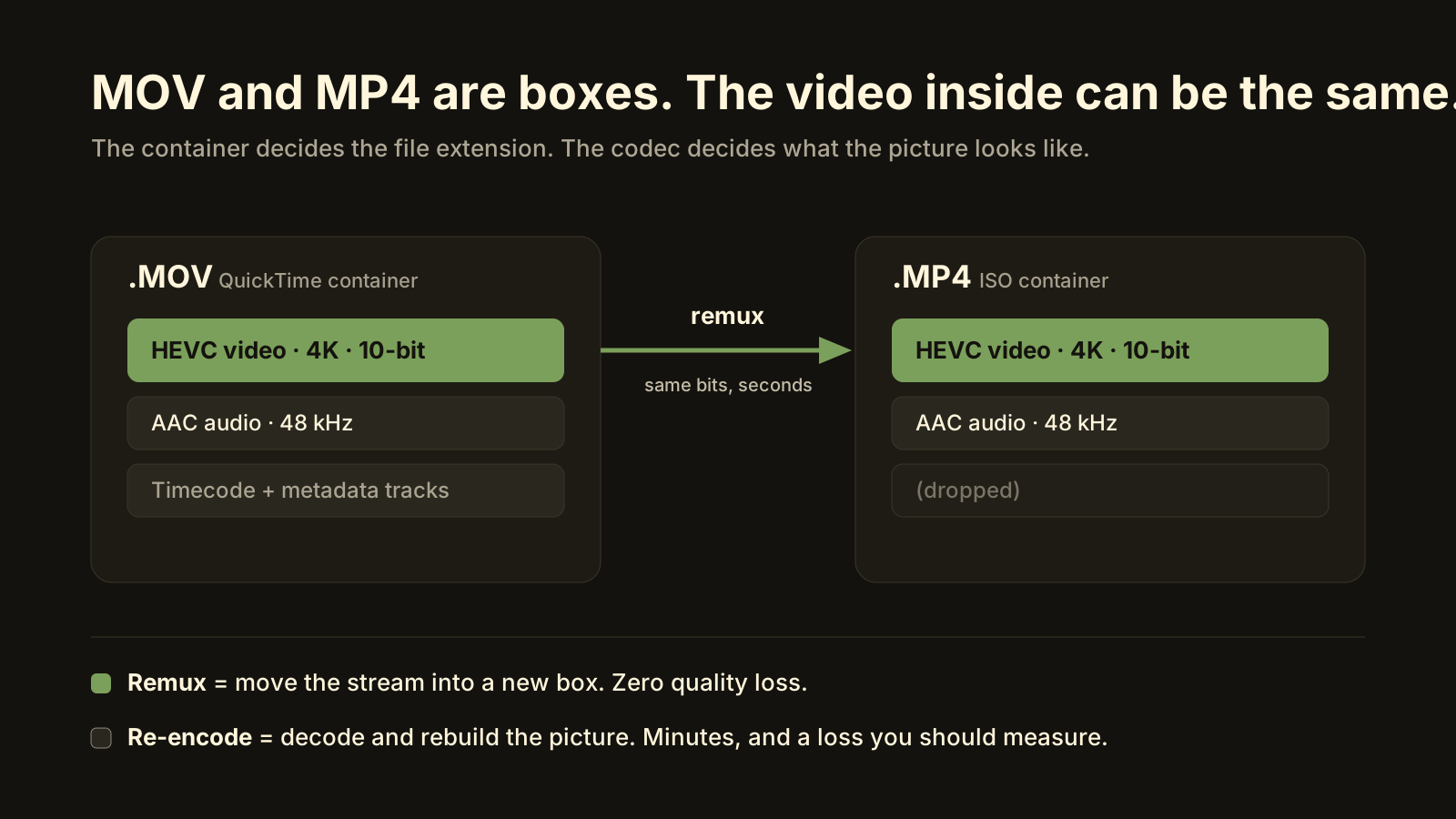
You can convert a MOV to MP4 on Windows with zero quality loss in most cases, because MOV and MP4 are containers and the HEVC or H.264 video inside an iPhone MOV is already what an MP4 holds. Moving the streams into a new container (a remux) takes seconds and doesn’t touch a single pixel. You only need a real conversion (a re-encode) when the destination needs a different codec, size or HDR handling, and then you should pick the quality deliberately and measure the result rather than trust the preset.
Remux moves the stream into a new box. Re-encode rebuilds the picture. Only one of them loses quality.
What’s the difference between MOV and MP4?
Less than the file extensions suggest. Both are containers: wrappers that hold a video stream, one or more audio streams, and some metadata, with an index that says where each frame lives. MP4 was standardised from Apple’s QuickTime format, so the two are close relatives. The thing that decides what the picture looks like is the codec inside: HEVC (H.265), H.264, ProRes, and so on.
| MOV | MP4 | |
|---|---|---|
| What it is | Apple’s QuickTime container | ISO standard container, derived from QuickTime |
| Usual video inside (iPhone) | HEVC (default) or H.264; ProRes on Pro models | HEVC or H.264 |
| Usual audio inside | AAC | AAC |
| Can hold HDR (10-bit, HLG/Dolby Vision) | Yes | Yes |
| Plays in Windows apps by default | Partly: depends on the codec, not the extension | Partly: same answer |
| Extra tracks (timecode, motion metadata) | Common on iPhone recordings | Usually dropped |
Read the fifth row twice. When a Windows app refuses an iPhone MOV, the reason is almost never the “.mov”. It’s the HEVC codec inside. Renaming or remuxing to MP4 doesn’t change that, and converting to H.264 does, but at the cost of a re-encode. That distinction is the whole article.
Can I convert MOV to MP4 without losing quality?
Yes, if the codec inside is one that MP4 can hold and the destination can play it. Then you remux: copy the compressed video and audio streams out of the MOV and into an MP4 unchanged. Nothing is decoded, nothing is re-compressed, and the output is bit-for-bit the same picture. On a 2 GB file this takes about as long as copying the file.
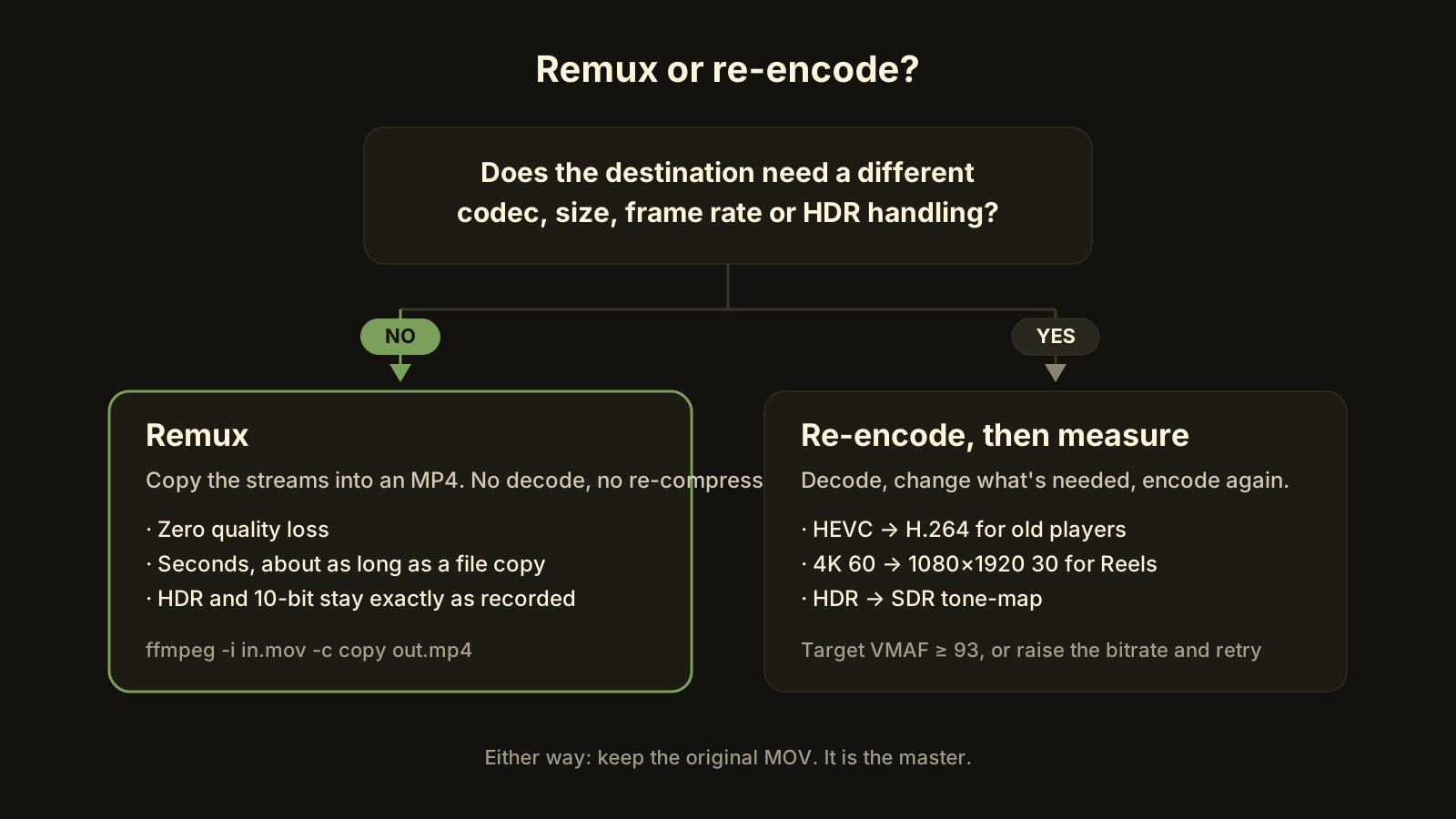 The one question that decides remux versus re-encode.
The exception is anything that changes the picture itself. A different codec (HEVC to H.264 for an old player), a different size (4K to 1080p for Reels), a different frame rate, or HDR to SDR all require decoding and encoding again. That’s a re-encode, and every re-encode loses something. How much is a number you can measure, and the section on bitrate below says what to aim for.
Why won’t Windows play my iPhone MOV?
Because iPhones have recorded HEVC by default since 2017, and Windows doesn’t decode HEVC in its own apps without an add-on. Photos, Movies & TV and the built-in Media Player all ask you to install HEVC Video Extensions from the Microsoft Store, a small paid add-on; some PCs ship with a manufacturer version pre-installed. Free players such as VLC and mpv carry their own HEVC decoder and play the file as it is.
Three ways out, in order of effort:
- Change the player, not the file. Install VLC or mpv. The MOV plays, HDR included on a capable screen, and you’ve lost nothing.
- Change the recording. On the iPhone, Settings → Camera → Formats → Most Compatible records H.264 from now on. Larger files, broader playback. Separately, Settings → Photos → Transfer to Mac or PC → Automatic converts HEVC to H.264 during a cable transfer; Keep Originals sends the HEVC file as recorded.
- Change the codec. Re-encode to H.264 once, for the one player or person who can’t handle HEVC. Keep the original.
If it’s an app’s import filter rather than playback (a web form that only accepts “.mp4”, a tool that lists MP4 but not MOV), a remux solves it in seconds. If the file is also bigger than 4 GB and going onto a FAT32 stick or through a size-limited upload, that’s a different problem; see the 4 GB problem.
When do I need to re-encode instead of remux?
When the destination needs something the current stream doesn’t have. Four common cases:
- Compatibility. The player, TV, or recipient can’t decode HEVC. Re-encode to H.264 (High profile, 8-bit, 4:2:0). This is a real conversion with a real, small, measurable loss.
- Size or frame rate. Reels wants 1080 × 1920 at 30 fps; a 4K 60 fps source has to be scaled and halved (59.94 → 29.97 is an exact 2:1 drop).
- HDR to SDR. An iPhone HDR clip going to a destination that reads it as SDR comes out grey unless it’s tone-mapped to BT.709. H.264 in practice means 8-bit SDR, so “convert to H.264” and “convert to SDR” usually happen together.
- Bitrate. A 200 Mb/s ProRes MOV is the right file for editing and a useless upload in practice. Re-encode to the destination’s bitrate and keep the ProRes as your master.
If none of the four applies, don’t re-encode. Re-encoding a file that was already right is pure loss: it costs minutes, and the output can only be equal or worse. How to compress a video without losing quality covers how to tell “already right” from “needs work”.
How do I convert MOV to MP4 step by step?
The steps below use FFmpeg, the open-source tool most converters are built on; the FFmpeg documentation describes stream copy in detail. Any GUI with a “copy” or “passthrough” video option does the same thing.
- Look inside the file. Right-click → Properties → Details shows frame size and frame rate; MediaInfo or
ffprobealso shows the codec (HEVC or H.264), bit depth and HDR tags. Decide remux or re-encode from the list above. - Remux (no quality loss).
ffmpeg -i clip.mov -map 0:v:0 -map 0:a:0 -c copy -movflags +faststart clip.mp4. The two-mapoptions keep only the main video and audio and drop the iPhone’s timecode and metadata tracks, which an upload doesn’t need;faststartmoves the index to the front so the file starts playing before it’s fully downloaded. Expect seconds, not minutes. - Re-encode (only if needed). For a compatible H.264 file:
ffmpeg -i clip.mov -c:v libx264 -preset slow -crf 18 -pix_fmt yuv420p -c:a aac -b:a 192k -movflags +faststart clip.mp4. FFmpeg’s own guide describes CRF 17–18 as visually lossless or nearly so, and 18–23 as the usual range. HDR sources need a tone-map filter on top, or the colours will be wrong. - Verify. Play it to the end. Check the duration matches the original to the frame. If you re-encoded, measure it: a VMAF score of 93 or better means the loss is below what a phone or a social platform will show.
- Keep the original. The MOV is your master. Converted copies are disposable; the original isn’t.
What bitrate should I use when converting MOV to MP4?
For a remux, none: the bitrate is whatever the iPhone recorded, and it’s unchanged. For a re-encode, the destination sets it. YouTube’s published recommendations are 8 Mb/s for 1080p30, 12 for 1080p60, 16 for 1440p30 and 35–45 for 2160p30, more for HDR. Reels is well served at about 10 Mb/s for 1080 × 1920. For a file that’s going to a person rather than a platform, constant-quality encoding (CRF) beats a fixed bitrate, because it spends bits where the picture needs them.
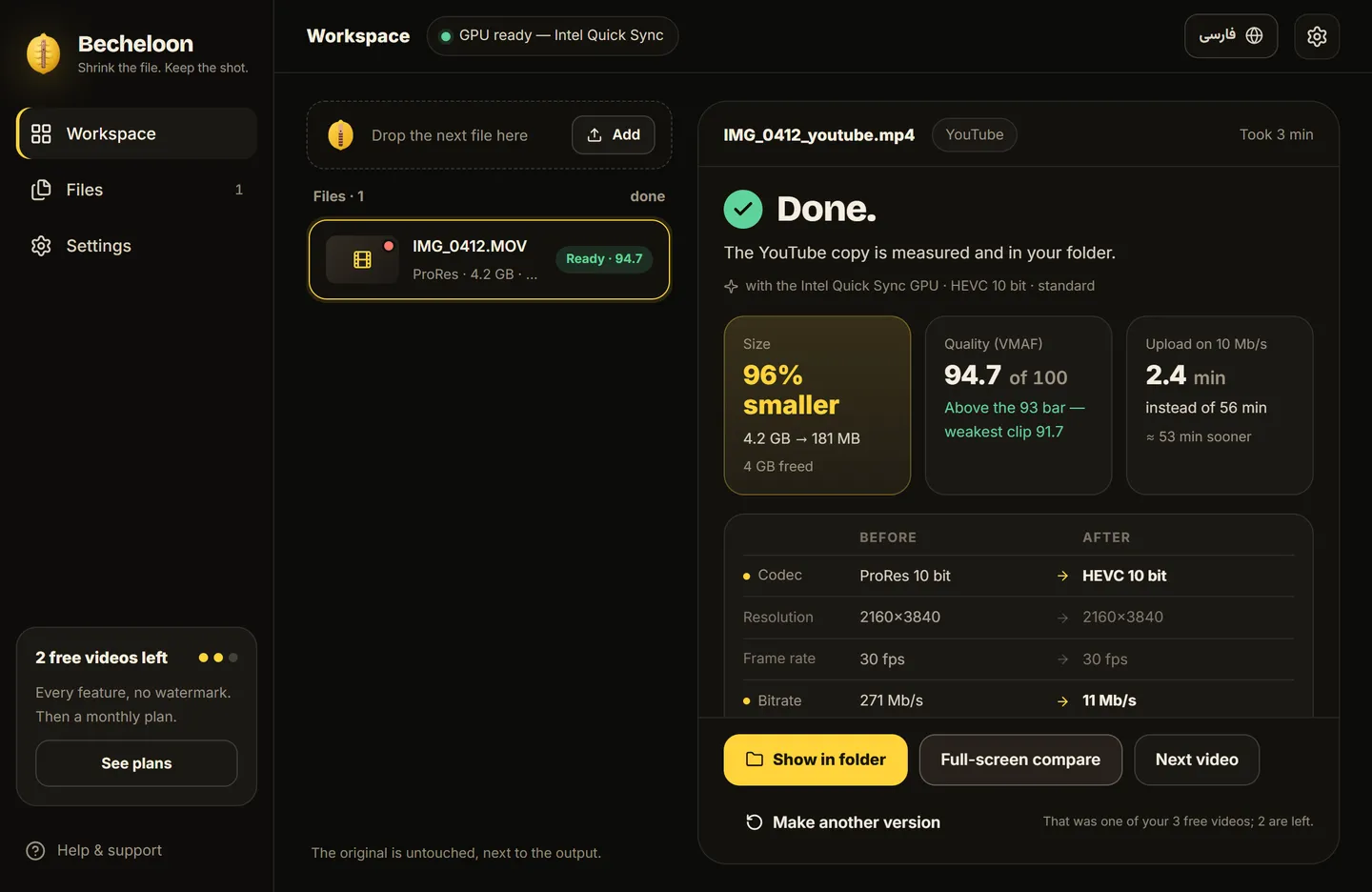 A re-encode with a number attached. If the number is short, raise the bitrate and run it again. (Numbers on the screenshot are sample values.)
Whatever you choose, measure once. Encoder presets vary a lot between tools, and “high quality” in one app can be a bitrate that another app would call “low”. A measured score takes guessing out of it: around 4 seconds per 2-second sample on a 1080p clip.
The shortcut
Becheloon follows a simple rule: if the file already fits the destination, it is remuxed or left alone; nothing is re-encoded for the sake of it. Drop the MOV in, and the free report tells you whether this file needs a real conversion or just a new container, and why. If it does need re-encoding, Becheloon picks the destination’s settings, measures the output with VMAF and won’t call anything below 93 ready. Your original is never modified. The first three videos get every feature. Download it for Windows or see current prices.