Why iPhone ProRes and Galaxy APV files are so huge
ProRes and APV store every frame in full so editors can cut anywhere. Apple says ProRes runs up to 30× HEVC. Keep the master, upload a measured HEVC copy.
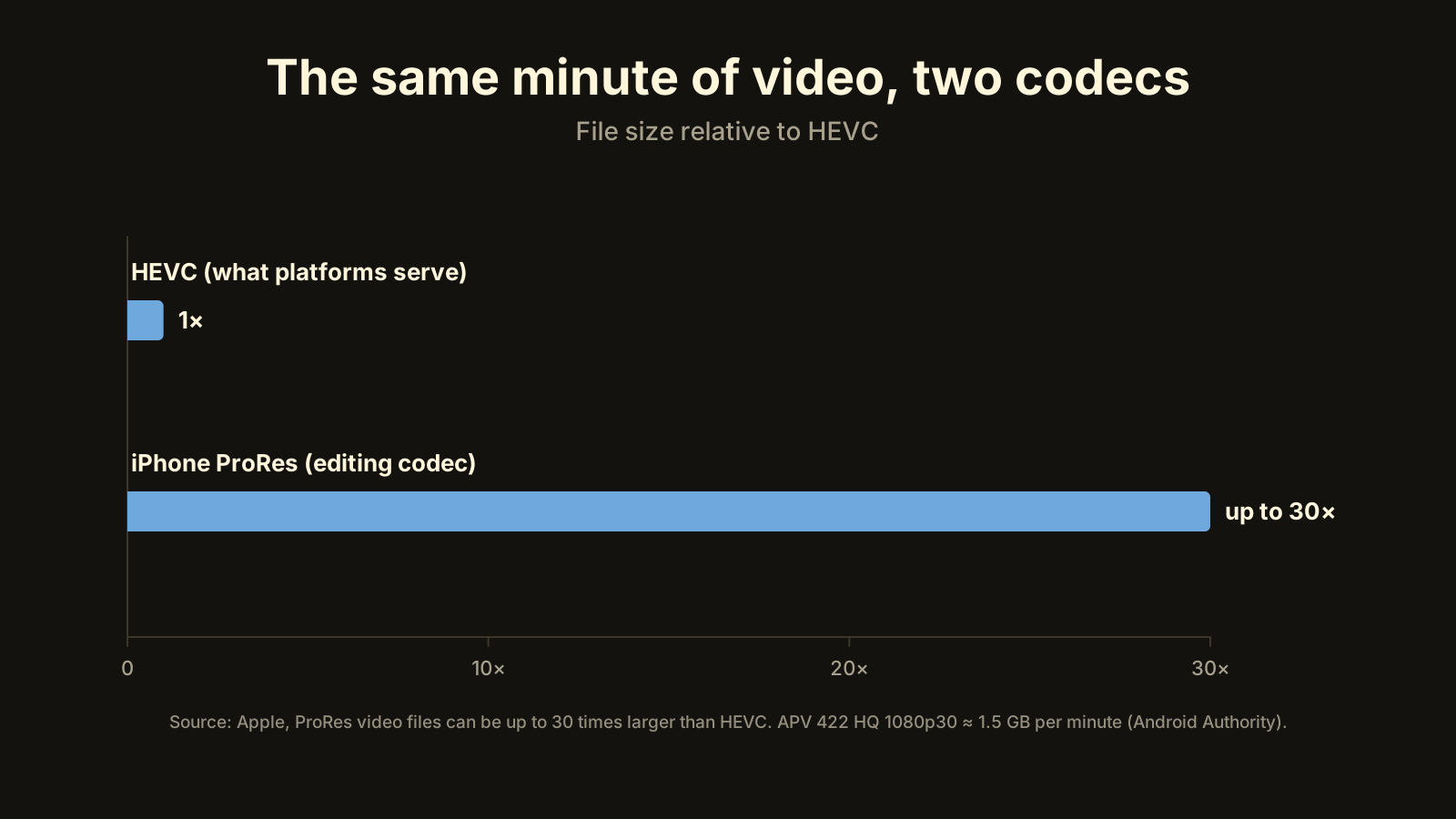
iPhone ProRes and Galaxy APV files are huge because they are editing codecs: they store every frame as a complete picture, so an editor can cut, grade and scrub anywhere without the image falling apart. HEVC and H.264, the codecs phones normally record and platforms serve, store one full frame and then mostly the changes, which is why they are a fraction of the size. Apple says ProRes files can be up to 30 times larger than HEVC, and Android Authority measured APV 422 HQ at about 1.5 GB per minute at 1080p30. Keep the original for editing, and upload an HEVC copy made at the destination’s bitrate and checked with a quality score.
One minute, two codecs. Apple’s figure for ProRes is up to 30× the size of HEVC.
What makes ProRes and APV different from HEVC?
The difference is how each codec treats time.
Intra-frame codecs (ProRes, APV) compress each frame on its own. Frame 1,000 doesn’t depend on frame 999. Every frame is a full picture, compressed lightly, with 10-bit colour and generous colour detail (the “422” in the names means colour is kept at twice the horizontal resolution of typical delivery files).
Inter-frame codecs (HEVC, H.264) store a complete keyframe every so often and, in between, only describe what moved or changed. In a static shot of a person talking, only a small part of the picture changes from one frame to the next, so most of each frame costs almost nothing.
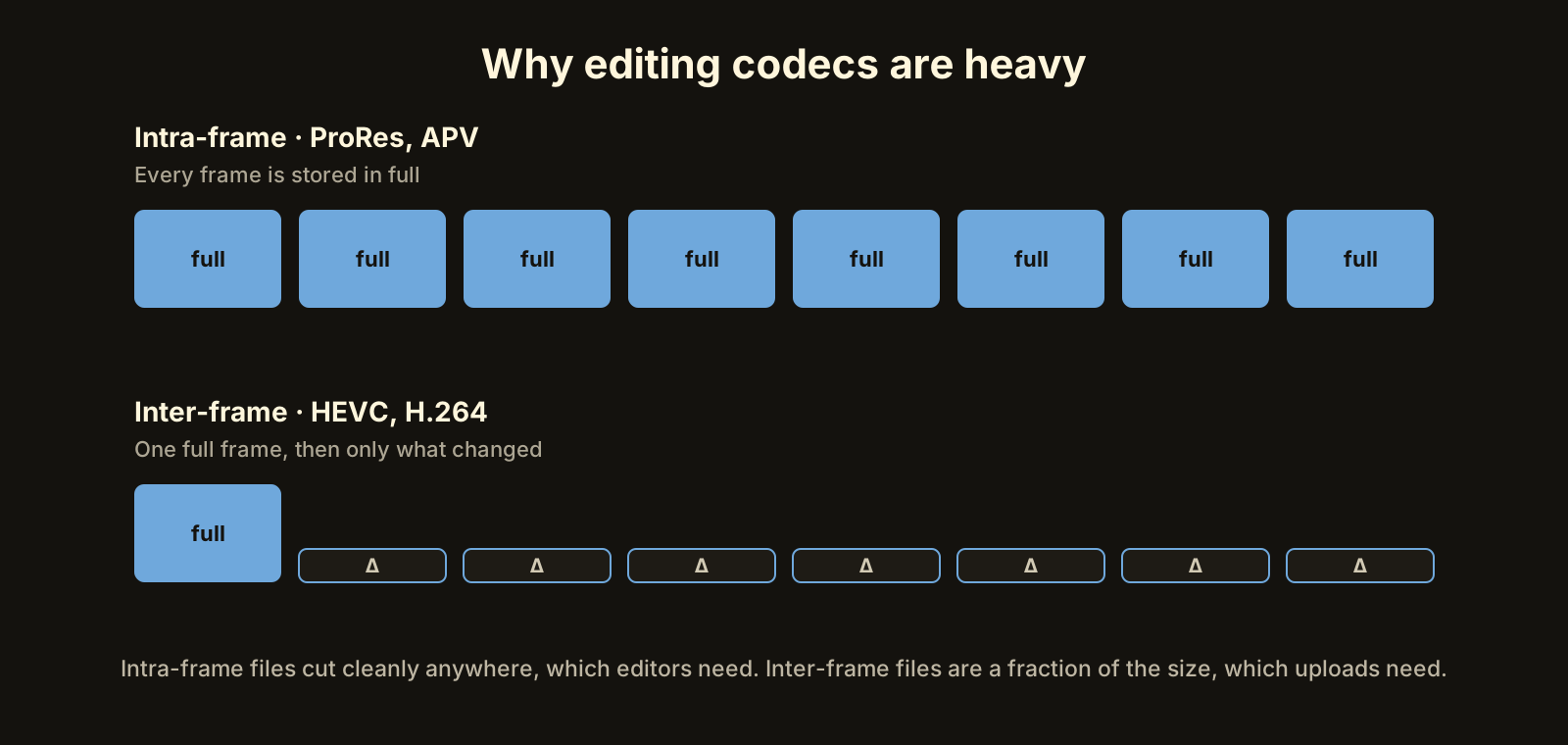 Intra-frame files cut cleanly anywhere, which editors need. Inter-frame files are a fraction of the size, which uploads need.
That design choice is the whole story. Intra-frame footage is fast to decode at any point, survives heavy colour grading, and doesn’t smear when you push it, which is exactly what you want on a timeline. Inter-frame footage is efficient to store and send, which is exactly what you want on a network. Neither is “better”. They’re built for different jobs.
APV (Advanced Professional Video) is Samsung’s answer to ProRes, added to recent Galaxy flagships, including the S25 series we tested below. Same idea: intra-frame, 10-bit, 422, high bitrate, made to be edited.
How big are these files, really?
File size is just bitrate multiplied by duration. One minute at 10 Mb/s is 600 megabits, or about 75 MB. Everything else follows from that.
| Codec | Type | Rough size per minute | Good for |
|---|---|---|---|
| iPhone ProRes | Intra-frame | Up to 30× the HEVC recording (Apple) | Editing, grading, archiving the master |
| APV 422 HQ, 1080p30 | Intra-frame | About 1.5 GB (Android Authority) | Editing and grading on a PC |
| Galaxy S25 APV HLG at 248 Mb/s | Intra-frame | About 1.9 GB (248 Mb/s × 60 s) | Editing |
| HEVC at 10 Mb/s | Inter-frame | About 75 MB | Uploading, sharing, HDR delivery |
| H.264 at 8 Mb/s (YouTube’s 1080p30 figure) | Inter-frame | About 60 MB | Uploading where compatibility matters |
Two minutes of APV or ProRes lands in the multi-gigabyte range, and a short shoot can fill a phone. That’s not a defect. It’s the price of a file that holds up in an edit.
Do YouTube and Instagram keep that extra quality?
No. Every upload is decoded and re-encoded into the platform’s own versions, at bitrates far below what you sent. YouTube’s recommendation for 1080p30 is about 8 Mb/s, and Meta’s spec for Reels is 1080×1920 at 30 fps. What your viewers get is the platform’s encode, not your master.
So a 4 GB master doesn’t produce a 4 GB-quality video. It produces a long upload, followed by the same compression everyone else gets. Some of these masters also carry Log or HDR colour that a platform can misread, which shows up as grey or washed-out video no matter how many gigabytes you sent. We covered the colour side in the 4 GB problem. This article stays on size.
The extra data still has a cost, though, and you pay it at your end.
How long does a ProRes upload take?
Upload time is size divided by upload speed. On a 10 Mb/s upload connection:
- 4 GB master: about 55 minutes.
- 400 MB copy: about 5.5 minutes.
That’s before retries. If an upload stalls at 80% on a flaky connection, some upload flows start over, and you pay the 55 minutes again. On a metered connection or a phone hotspot, you also pay for every gigabyte.
A smaller file doesn’t just save time. It makes the upload far more likely to finish on the first try.
What should you upload instead?
An HEVC copy, made at the bitrate the destination actually uses, and measured against the original so you know nothing visible was lost. HEVC is the right default here: it carries 10-bit HDR, every major platform accepts it, and it needs less bitrate than H.264 for the same quality. The trade-offs are in HEVC vs H.264 for upload.
“Measured” is the important part. A smaller file is easy; a smaller file you can show looks the same is the goal. The usual tool is VMAF, a score from 0 to 100 that predicts how close a copy looks to its source. As a rough, unofficial guide, 95 and up is close to invisible, and 90 to 95 is good for phones and social feeds.
Here is a real case from our own testing. A Galaxy S25 APV HLG clip, 143 seconds at 248 Mb/s, works out to roughly 4.4 GB by the bitrate-times-duration rule. Converted for Reels, the upload copy came out at about 170–181 MB, 96% smaller, with a VMAF of 94.70. On a 10 Mb/s connection, that’s the difference between about an hour of uploading and under three minutes.
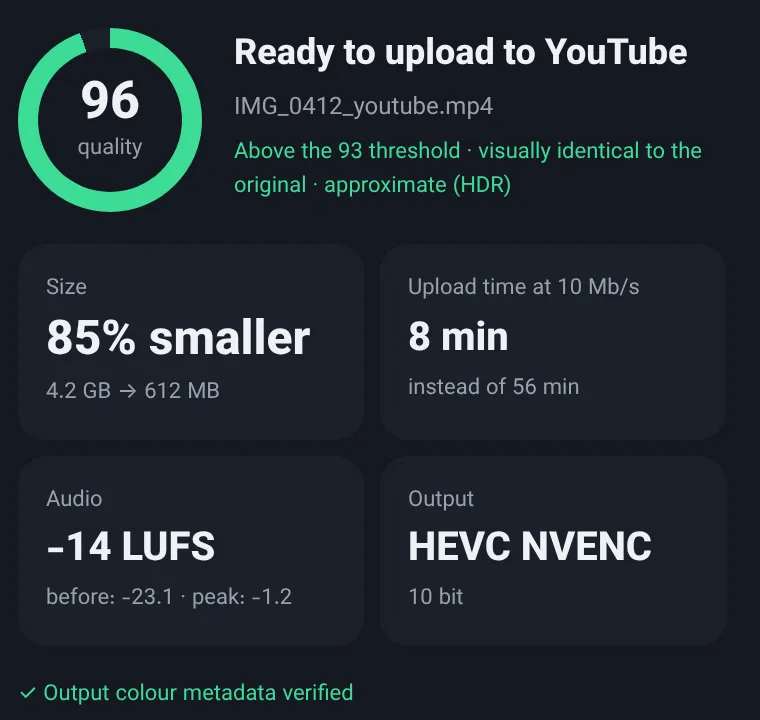 The finished card puts the measured quality score next to the size saved and the upload time, so you’re not trusting the encoder on faith. (Numbers on the screenshot are sample values.)
How do you make the upload copy?
- Keep the master. Copy the ProRes or APV file to your PC and leave it untouched. It’s your edit file and your archive; nothing you upload replaces it.
- Pick the destination first. YouTube, Reels and TikTok want different things: resolution, frame rate, bit depth, whether HDR survives. The destination decides the bitrate, not the source.
- Check the colour. If the clip is Log, it needs a conversion to Rec.709 with the official LUT from Apple or Samsung. If it’s HDR and the destination can’t show HDR, it needs a tone-map to SDR. Skip this and the copy looks wrong at any bitrate.
- Encode to HEVC at the destination’s bitrate. For 1080p30 on YouTube, that’s around YouTube’s 8 Mb/s figure; for 4K, considerably more. Use a hardware encoder (NVENC, Quick Sync, AMF) if your PC has one; it’s far faster than software.
- Measure. Compare the copy with the master using VMAF. If it’s under your floor (93 is a sensible one for anything a platform will re-encode), raise the bitrate and encode again. The method is in how to compress a video without losing quality.
- Upload the copy, archive the master. Delete nothing until the post is live and looks right.
Should you stop shooting ProRes or APV?
Not if you edit. If you grade footage, cut it with other cameras, or crop and reframe heavily, the intra-frame codec earns its storage. Apple’s own article, About Apple ProRes on iPhone, is where the “up to 30 times larger than HEVC” figure comes from, and it frames ProRes as a format for post-production rather than everyday sharing.
If you don’t edit, and the clip goes straight from your phone to a platform, the phone’s normal HEVC recording is the more sensible format. It’s already inter-frame, already HDR-capable, and already close to what platforms want. Shooting ProRes for a clip you’ll post untouched just moves the compression step from your phone to your PC, and costs storage on the way.
The rule that holds either way: shoot in whatever serves the edit, upload whatever serves the destination. They’re rarely the same file.
The shortcut
Becheloon does these steps for you on Windows. Drop in the ProRes or APV file, pick YouTube, Reels or TikTok, and the free report tells you what the file is and what the platform would do to it: Log, HDR, frame rate, bitrate, loudness. One click makes an HEVC copy at the destination’s bitrate, converts the colour where needed, measures it with VMAF and won’t call anything under 93 ready. Your original is never touched. The first three videos are free with every feature. Download it for Windows or see current prices.