Why Instagram ruins video quality (and what you can do about it)
Instagram re-encodes every video and compresses harder when the file is far from 1080×1920 at 30 fps or the upload is slow. How to lose less in the process.
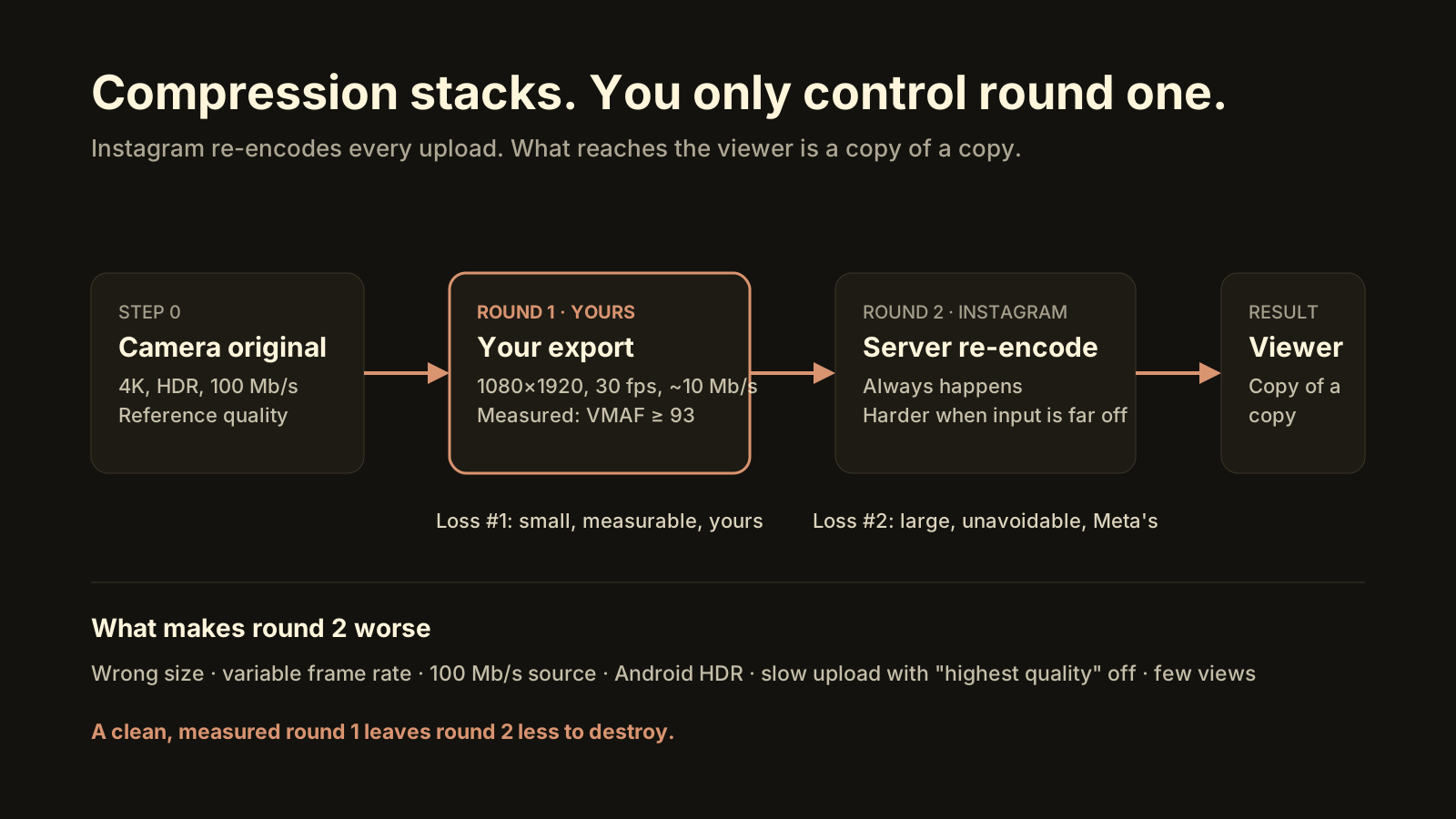
Instagram ruins video quality because it re-encodes every upload to its own, much lower bitrate, and it compresses hardest when your file is far from what it wants: not 1080 × 1920, a variable frame rate, a 100 Mb/s source, or Android HDR. It also sends a lower-quality version when the connection is slow and Upload at highest quality is off, and it gives posts with few views a cheaper encode. You can’t skip the re-encode, but a clean 1080 × 1920, 30 fps file at about 10 Mb/s that measures VMAF 93 or better gives Instagram far less to destroy.
Two rounds of compression stack. You only control the first one, so make it count.
Does Instagram always lower video quality?
Yes. There is no setting, file type or account level that makes Instagram serve the file you uploaded. Every video is decoded and re-encoded on Meta’s servers into several versions at different resolutions and bitrates, and the viewer’s phone picks one depending on screen and connection. Meta has written about this pipeline on its engineering blog: a cheap “basic” encode is produced for everything, and better encodes (including AV1) are reserved for videos that earn enough watch time.
The bitrate Instagram ends up serving is low by any export standard. It’s typically a fraction of the 8–12 Mb/s you’d use for a 1080p export yourself. That alone explains most of the softness people notice, and it’s the part you can’t change.
What you can change is how much damage that re-encode does. A compressor working from a clean, correctly sized, correctly tagged source has an easier job than one that also has to scale, convert frame rates and guess at colour. The difference between a Reel that looks fine and one that looks like a 2009 webcam is usually in that second category.
Why does Instagram compress some videos more than others?
Because three different things make the re-encode harsher, and most people only know about one of them.
| Cause | What happens | What to do |
|---|---|---|
| Source far from target (4K, 60 fps, 100 Mb/s, wrong aspect) | Instagram scales, converts and compresses in one step; detail and motion suffer | Deliver 1080 × 1920, 30 fps, about 10 Mb/s |
| Variable frame rate (screen recordings, some camera apps) | Judder, duplicated frames, occasional audio drift | Export at a constant frame rate |
| Android HDR or Log footage | Colour read as SDR: grey, flat, over-bright | Tone-map to SDR before upload; keep iPhone HDR |
| Slow upload, “Upload at highest quality” off | The app uploads a lower-quality rendition to finish sooner | Wi-Fi, and switch the setting on |
| Few views in the first hours | The post stays on the “basic” encode | Nothing to fix in the file; a clean source still helps |
Far from the target. Instagram’s own target for Reels is 1080 × 1920 at 30 fps, and its encoder is tuned for input close to that. Send 4K at 60 fps and it has to downscale and drop frames before it compresses, so you’ve handed it two extra opportunities to get things wrong. Send a 120 Mb/s ProRes file and the upload takes about twelve times longer than a 10 Mb/s file for no visible gain, since the served bitrate will be the same.
Slow uploads. The Instagram app encodes on your phone before it uploads. On a slow or unstable connection, with Upload at highest quality off, it chooses a smaller, lower-quality encode so the post goes up faster. That file is what Meta’s servers then re-encode, so the loss stacks three times: phone, server, playback. Meta documents the setting in its Help Center under data usage and media quality.
Engagement tiers. Meta has described producing higher-quality encodes only for videos that get enough views. For a small account this means your first few hours of viewers are watching the cheapest version, and some posts never move past it. There’s nothing to change in the file here. It’s worth knowing so you don’t chase a problem that isn’t in your export.
How do I stop Instagram from ruining my video quality?
You stop giving it reasons to work hard. Six changes cover almost every case.
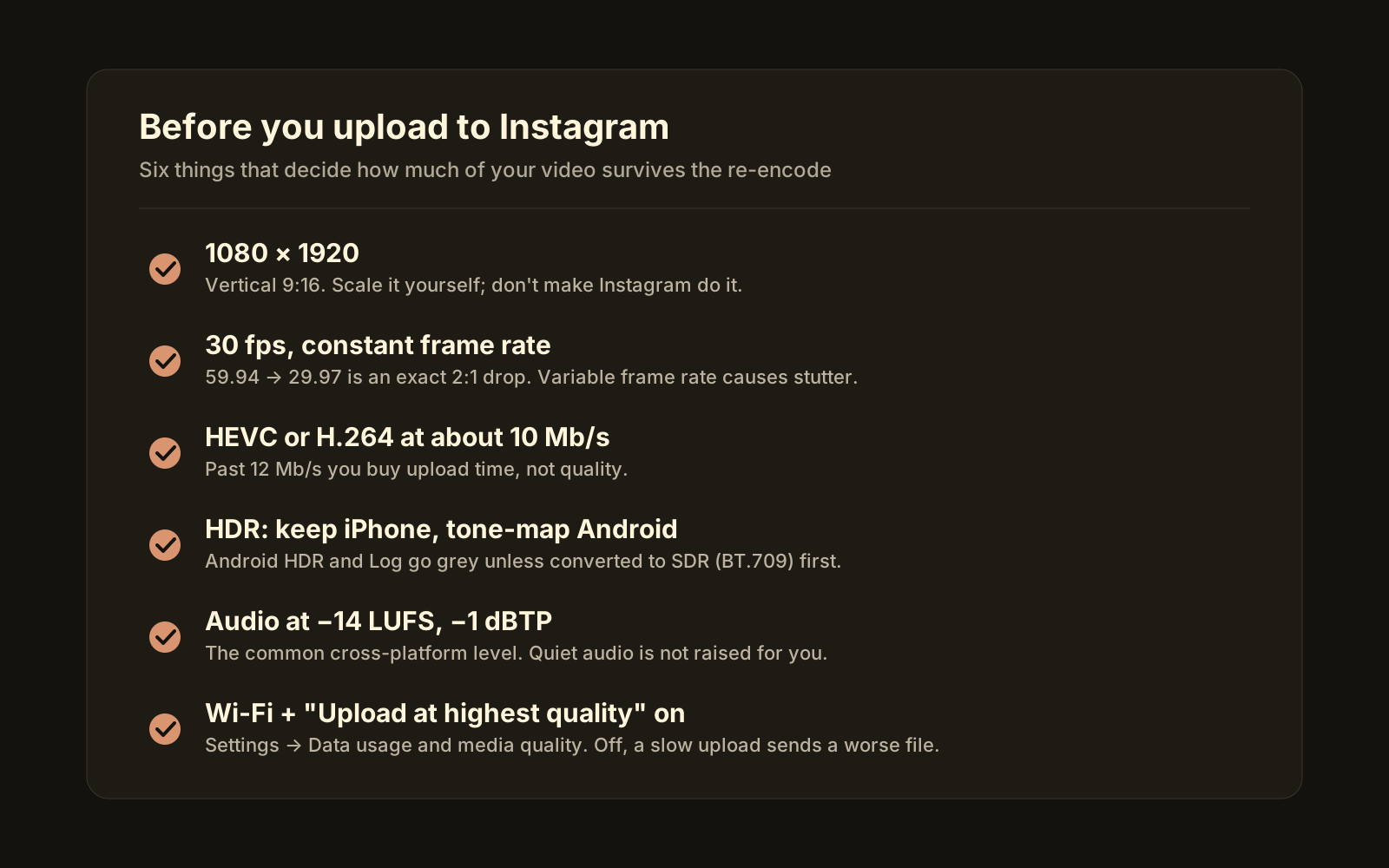 Six settings that decide how much of your video survives.
- Export at 1080 × 1920. A vertical 9:16 frame at Instagram’s own resolution. Do the scaling yourself, in your editor, where you control the quality of the scaler.
- Use 30 fps, constant frame rate. If you shot 60 fps, convert it cleanly (59.94 → 29.97 is an exact 2:1 drop). If your file is variable frame rate, make it constant; this fixes more “my video stutters on Instagram” complaints than anything else.
- Encode HEVC or H.264 at about 10 Mb/s. Both are accepted. Past 12 Mb/s you’re buying upload time, not quality, because the served bitrate is set by Instagram. The full settings table is in the best Reels export settings.
- Handle HDR deliberately. iPhone HDR going to Instagram on iOS now often survives, so keep it. Android HDR and any Log footage should be tone-mapped to SDR (BT.709) before upload, or it will come out washed out. The why is in why your Reel looks washed out.
- Normalise audio to −14 LUFS, −1 dBTP. Instagram doesn’t publish a loudness target, so this is the safe, common level used across platforms. How it treats very quiet or very loud tracks isn’t documented, so aim for the middle.
- Upload on Wi-Fi with Upload at highest quality on. In the app: Settings → Data usage and media quality → Upload at highest quality. Then wait for the upload to finish before you lock the phone.
None of this makes Instagram keep your file. It makes the file it does keep closer to the one you exported.
Why does “start clean” matter if Instagram re-encodes anyway?
Because compression loss stacks, and the loss you add first is the only one you can measure.
Think of it as two rounds. Round one is your export: you take the camera original and compress it. Round two is Instagram: it takes your export and compresses it again. The viewer sees the output of round two. If round one already lost visible detail, round two can’t bring it back; it can only lose more. If round one was nearly transparent, round two starts from almost the same place it would have started from with the original, and the result is as good as Instagram allows.
“Nearly transparent” is a measurable thing. VMAF, the quality metric Netflix open-sourced, scores a compressed file against its original from 0 to 100. In the usual reading, 95 and above is close to invisible, 90–95 is good for phones and social, and below 85 the loss is obvious. For a file that’s about to be re-encoded, 93 or better is a sensible floor: the few points you lose are below what the second round will take anyway. What VMAF tells you explains the scale and its limits.
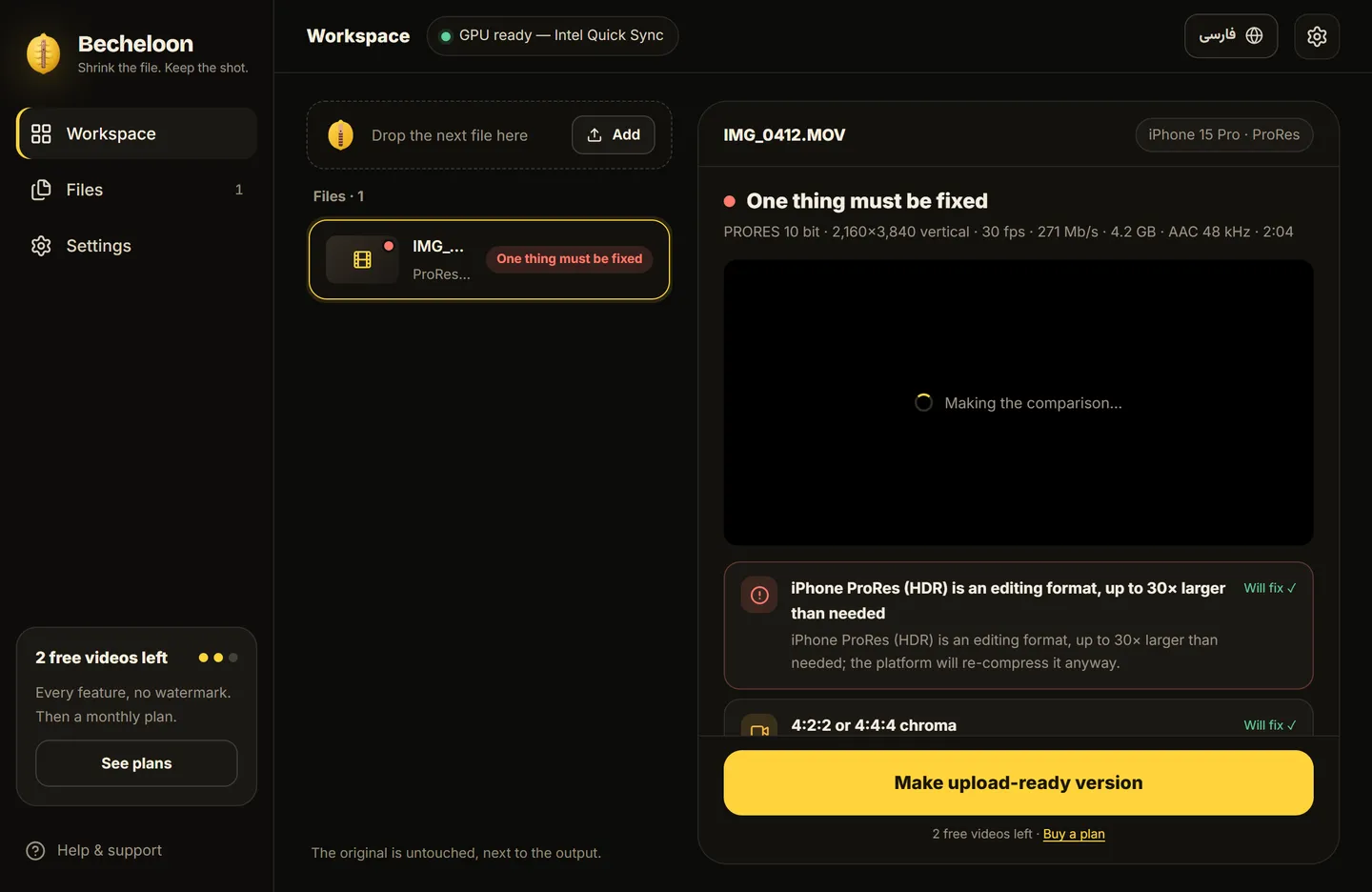 A pre-upload report. Each row is one of the causes above, judged for this specific file.
The practical consequence: don’t set your export bitrate by feel. Export, measure, and raise the bitrate if the score is short. On a 1080p clip the measurement costs around 4 seconds per 2-second sample, so checking ten samples adds under a minute to the export.
How can I check a video before uploading it?
Open the file’s properties and look for four things: resolution (1080 × 1920), frame rate (30, and constant), codec (HEVC or H.264) and colour (SDR unless it’s iPhone HDR going to iOS). Most players won’t tell you whether the frame rate is variable or whether a file carries HDR metadata, which is exactly where the surprises hide. MediaInfo shows both; so does any tool that reads the stream headers rather than the container.
If the file fails any of the four, fix it before you upload rather than after. Re-downloading a posted Reel and re-uploading a “corrected” version adds Instagram’s compression to your source, and the second attempt looks worse than the first.
The shortcut
Becheloon does all of this in one step on your own computer. Drop the clip in, and the free report tells you which of the causes above apply to this file. Pick Reels, and it makes a 1080 × 1920, 30 fps, correctly tone-mapped, −14 LUFS copy, measures it with VMAF, and refuses to call anything below 93 “ready”. Files that are already right are left alone. The report is always free, and the first three videos get every feature. Download it for Windows or see current prices.