How to compress 4K video for YouTube: keep 4K or go 1080p?
YouTube wants 35–45 Mb/s for 4K at 30 fps, so a 10-minute clip is about 3 GB; at 1080p it is 750 MB. When 4K is worth the upload, when 1080p is fine, and the steps.
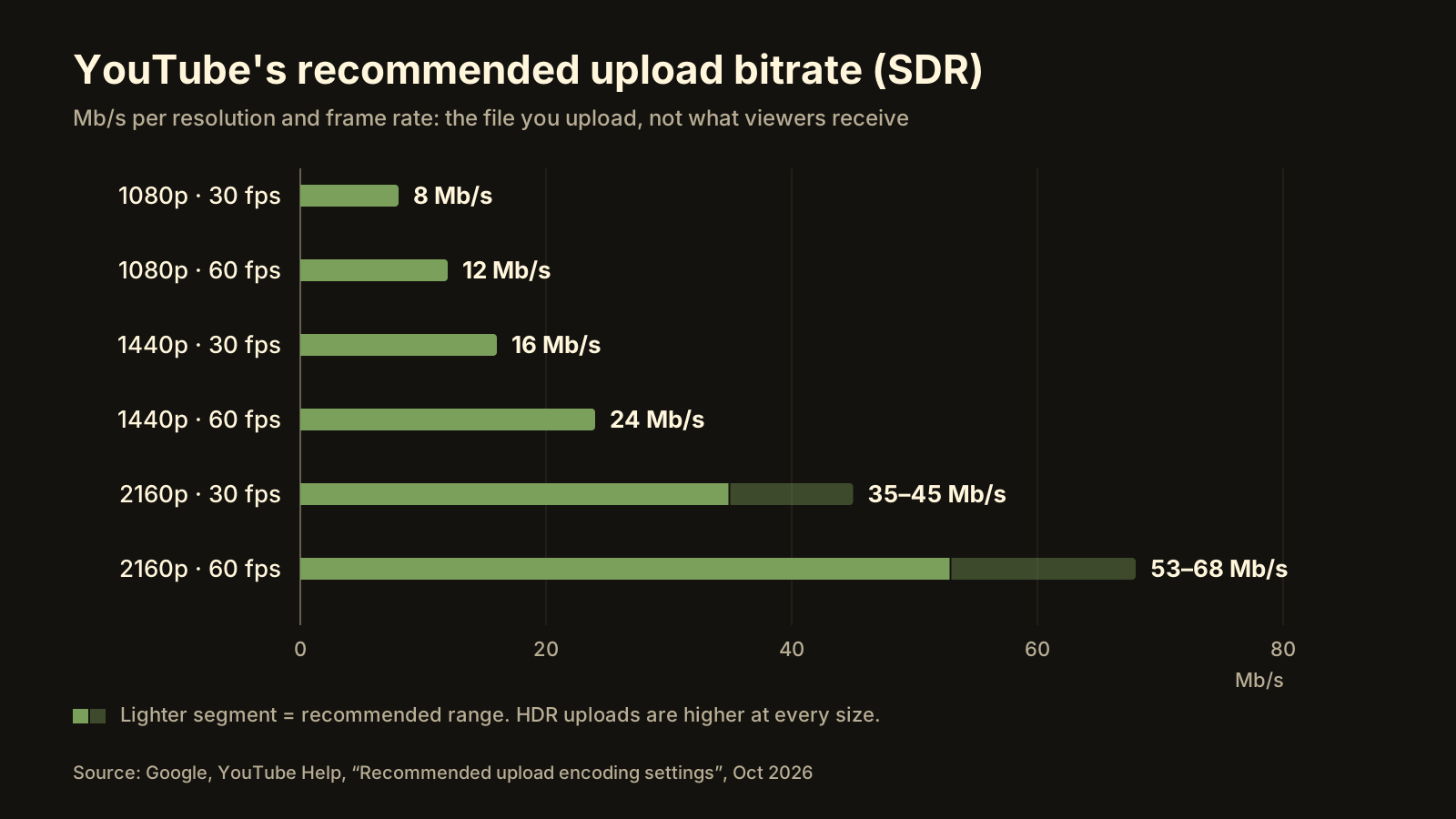
To compress 4K video for YouTube, re-encode it with HEVC or H.264 at the bitrate YouTube recommends for the resolution you keep: 35–45 Mb/s for 2160p at 30 fps, 16 Mb/s for 1440p, 8–10 Mb/s for 1080p. A 10-minute 4K30 clip at 40 Mb/s is about 3 GB; the same clip at 1080p and 10 Mb/s is about 750 MB, a quarter of the size and a quarter of the upload time. Whether the 4K is worth that depends on what’s in the frame and on what screen people watch it, and both answers are below.
What bitrate does YouTube recommend for 4K?
Google publishes a table of recommended upload bitrates in YouTube Help, under “recommended upload encoding settings”. For SDR video it reads:
| Upload resolution | 24–30 fps | 48–60 fps |
|---|---|---|
| 1080p | 8 Mb/s | 12 Mb/s |
| 1440p (2K) | 16 Mb/s | 24 Mb/s |
| 2160p (4K) | 35–45 Mb/s | 53–68 Mb/s |
HDR uploads get higher figures at every resolution. The rest of the recommendation is the same for all sizes: MP4, H.264 High profile (HEVC is also accepted), progressive, 4:2:0, your original frame rate, and AAC-LC audio at 48 kHz. The YouTube upload settings article has the audio side.
Two things about that table. First, it is an upload recommendation, not what viewers receive. YouTube re-encodes everything and serves its own, much smaller renditions; your upload bitrate sets the ceiling for how good those can look. Second, the 4K numbers are roughly four to six times the 1080p numbers, because 4K has four times the pixels. There is no cheap 4K.
Does YouTube treat 4K uploads differently from 1080p?
Probably, and this is the main reason people upload 4K or 1440p even when they filmed for phone screens.
Creators and testers have reported for years that YouTube served low-view videos uploaded at 1080p and below in H.264 only, while uploads at 1440p and 2160p received VP9 renditions, including the 1080p rendition that most viewers get. VP9 at the same bitrate generally looks cleaner than H.264, with fewer blocks in dark and busy scenes. So a 1440p or 4K upload could buy a better-looking 1080p stream for every viewer.
Treat this as an observed tendency, not a rule. YouTube’s behaviour is not officially published, it has changed over the years (AV1 now appears on some videos), and it may depend on views and channel. You can check any video yourself: right-click the player, open Stats for nerds, and read the Codecs line: avc1 is H.264, vp09 is VP9, av01 is AV1.
When should you keep 4K?
Keep the 2160p resolution when the extra pixels carry something:
- Detail-heavy frames. Landscapes, drone footage, product close-ups, screen recordings with small text, games. Downscaling to 1080p throws away three quarters of the pixels, and in these shots you can see it.
- Viewers on TVs and monitors. Open YouTube Analytics and look at device type. If a meaningful share of watch time is on TV, 4K is being seen at 4K.
- HDR footage. iPhone and recent Android phones record HDR by default. If you keep HDR, keep the resolution too; a 4K HDR upload is the case the pipeline is built for.
- Future-proofing. The video stays on the channel for years. Screens get larger; a 1080p upload will not.
The price is the file. At YouTube’s own numbers, 4K is roughly four and a half to five and a half times the size of 1080p at the same frame rate.
When is 1080p enough?
Drop to 1080p when the pixels are not doing anything:
- Talking head, podcast, tutorial, vlog. A face and a wall do not need 8 million pixels per frame.
- Phone viewers. A 6.1-inch phone at 1080 × 2400 cannot show more than 1080 lines no matter what you uploaded, and phones on mobile data rarely get served the 2160p rendition anyway.
- Already-compressed sources. If the “4K” came out of a messaging app or a screen recorder at 10 Mb/s, there is no 4K detail left to protect.
There is a middle option worth knowing. 1440p at 16 Mb/s is 40% of the 4K file, still gets the higher-resolution treatment described above, and downscales cleanly from a 4K source. For most small channels it is the practical sweet spot.
How big is the file, and how long does the upload take?
File size is roughly bitrate × duration. Ten minutes is 600 seconds, and 8 megabits make a megabyte.
| 10-minute clip | Bitrate | File size | Upload at 10 Mb/s |
|---|---|---|---|
| 2160p30 | 40 Mb/s | ≈ 3 GB | ≈ 40 min |
| 1440p30 | 16 Mb/s | ≈ 1.2 GB | ≈ 16 min |
| 1080p30 | 10 Mb/s | ≈ 750 MB | ≈ 10 min |
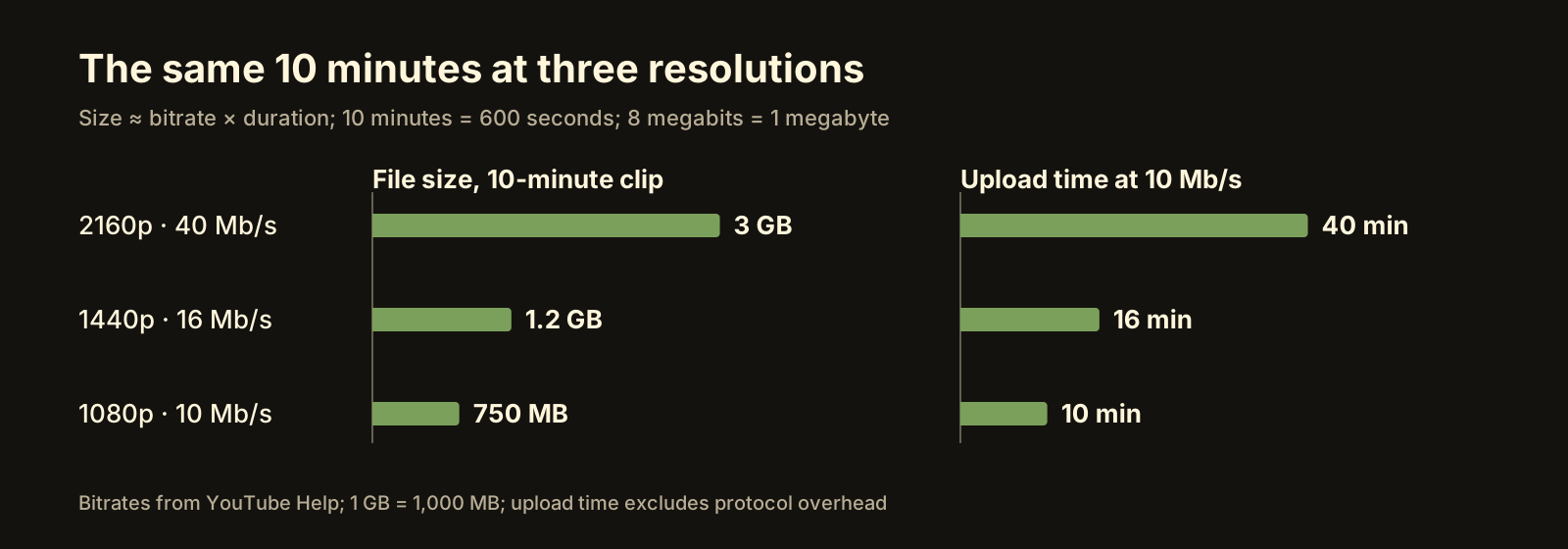 The same 10 minutes: 750 MB, 1.2 GB or 3 GB, and 10, 16 or 40 minutes of upload on a 10 Mb/s line.
That is the compressed file. What came out of the camera is usually far above these numbers: in our tests a Galaxy S25 APV clip ran at 248 Mb/s, and Apple says ProRes is up to 30 times larger than HEVC. So even if you keep 4K, compressing to 40 Mb/s first is not optional; it is the difference between a 3 GB upload and, at that APV clip’s 248 Mb/s, an 18.6 GB one.
How to compress 4K video for YouTube, step by step
- Read the source. Resolution, frame rate, bitrate, 8-bit or 10-bit, and whether it is HDR or Log. Becheloon’s free report shows this; MediaInfo does too.
- Choose the resolution with the two sections above. Detail or TV viewers: 2160p. Phone viewers and talking heads: 1080p. Unsure: 1440p.
- Choose the codec. HEVC 10-bit if the source is HDR or 10-bit; H.264 High if you need to open the file on anything that exists. HEVC vs H.264 for upload goes through the trade-offs.
- Set the bitrate. 40 Mb/s for 2160p30, 16 for 1440p30, 10 for 1080p30; about 1.5× those at 60 fps. Use variable bitrate with a cap of roughly twice the target so busy scenes have room. If your tool offers constant quality instead, x264’s CRF 18–23 is the usual range.
- Keep the frame rate. 59.94 stays 59.94. Converting 60 to 30 should be a decision, not a side effect.
- Handle colour. HDR going up as HDR keeps its BT.2020 and PQ or HLG metadata. HDR going to an SDR upload needs a tone-map, or it arrives grey, the same problem as a washed-out Reel.
- Fix the audio. AAC-LC, 48 kHz, 192 kb/s, loudness at −14 LUFS with peaks under −1 dBTP. If your videos sound quieter than everyone else’s, this is why.
- Measure before you upload. Compare the new file with the original using VMAF; aim for 90 or higher, 93 if you want margin for YouTube’s own re-encode. Below that, raise the bitrate by about 1.4× and encode again. How to compress a video without losing quality has the full method.
- Upload an MP4 with the index at the front (“fast start”), so processing begins before the upload finishes.
What does Becheloon’s YouTube preset do with 4K?
Becheloon makes the choices above into one click, and then checks its own work.
- Codec and resolution: HEVC up to 2160p60, 10-bit, with HDR (HDR10, HLG) kept as HDR. If the machine has no 10-bit HEVC encoder, HDR falls back to SVT-AV1 rather than to grey SDR.
- Bitrate ladder: 2160p at 40 Mb/s with an 80 Mb/s cap, 1440p at 16 Mb/s (cap 40), 1080p at 10 Mb/s (cap 20). The “Smaller” and “Higher quality” switches scale these by 0.75× and 1.3×, which in our measurements moves VMAF by about one point either way.
- Verification: VMAF on ten 2-second samples against the original, with a default floor of 93. If the score comes in under, it re-encodes at 1.4× and then 2× the bitrate, up to the cap, before it is allowed to say “Ready”. On an Intel HD 530, a Samsung Log clip going to YouTube scored VMAF 94.96 with a file 72% smaller than the original.
- The harmless rule: a file that already fits the destination is not re-encoded, only remuxed. The original is never touched.
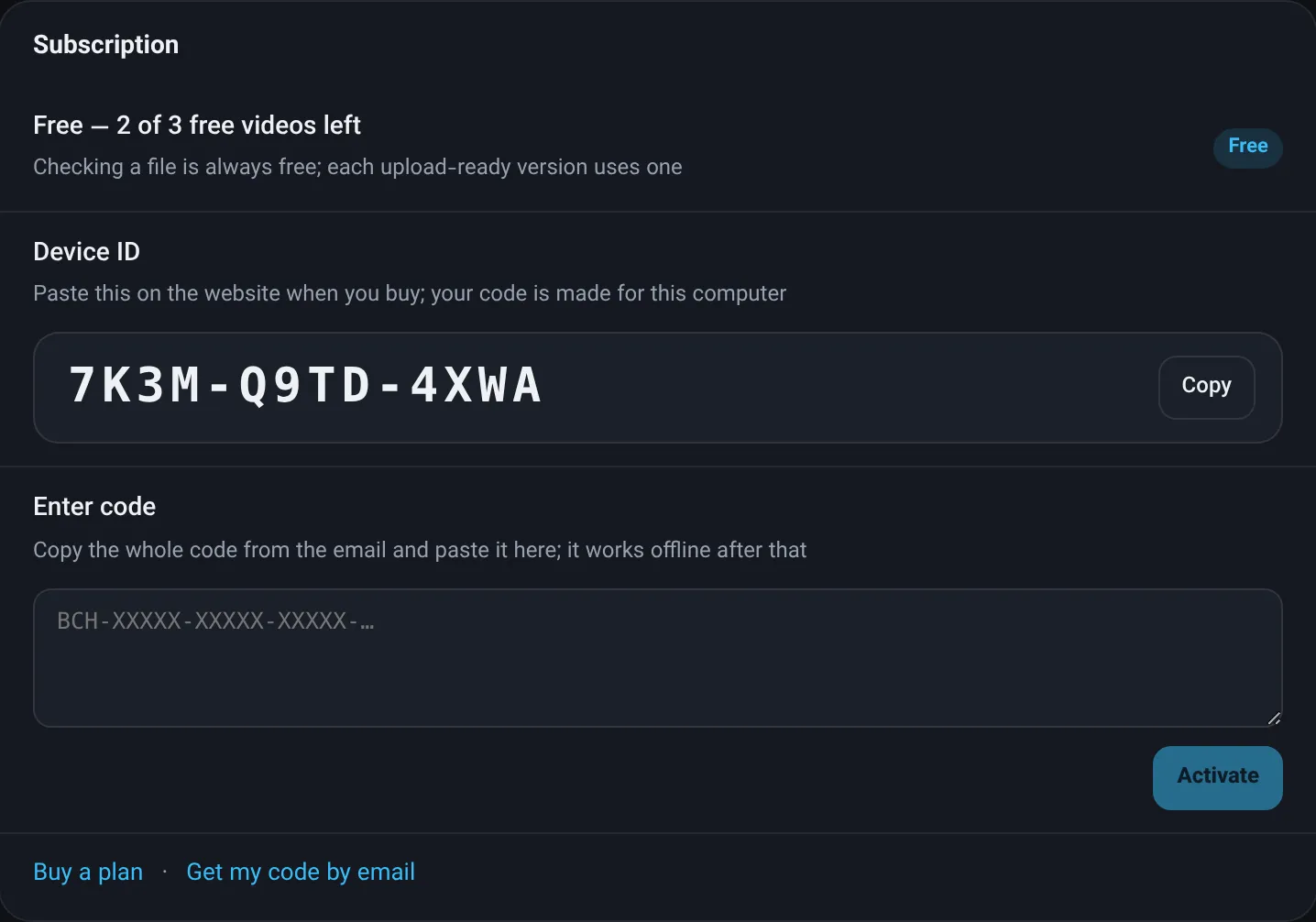 Checking a file is always free; each upload-ready version uses one of the three free videos, and a paid code is tied to this computer and works offline.
The shortcut
If you would rather not do the arithmetic, drop the 4K file on Becheloon. The free report tells you the source bitrate, whether it is HDR or Log, and what the YouTube version will weigh at 2160p, 1440p or 1080p, so the keep-or-drop decision is made with the numbers in front of you. One click builds the upload-ready copy on your own computer, offline, measures it with VMAF, and refuses to call it ready below the threshold. The first three videos get every feature; after that it is a small monthly plan. Download it or see current prices.